How to Integrate PhonePe Payment Gateway in PosBytz POS
Step-by-step guide to integrate PhonePe payment gateway with PosBytz POS. See the details you need and how to start accepting UPI QR payments at checkout.
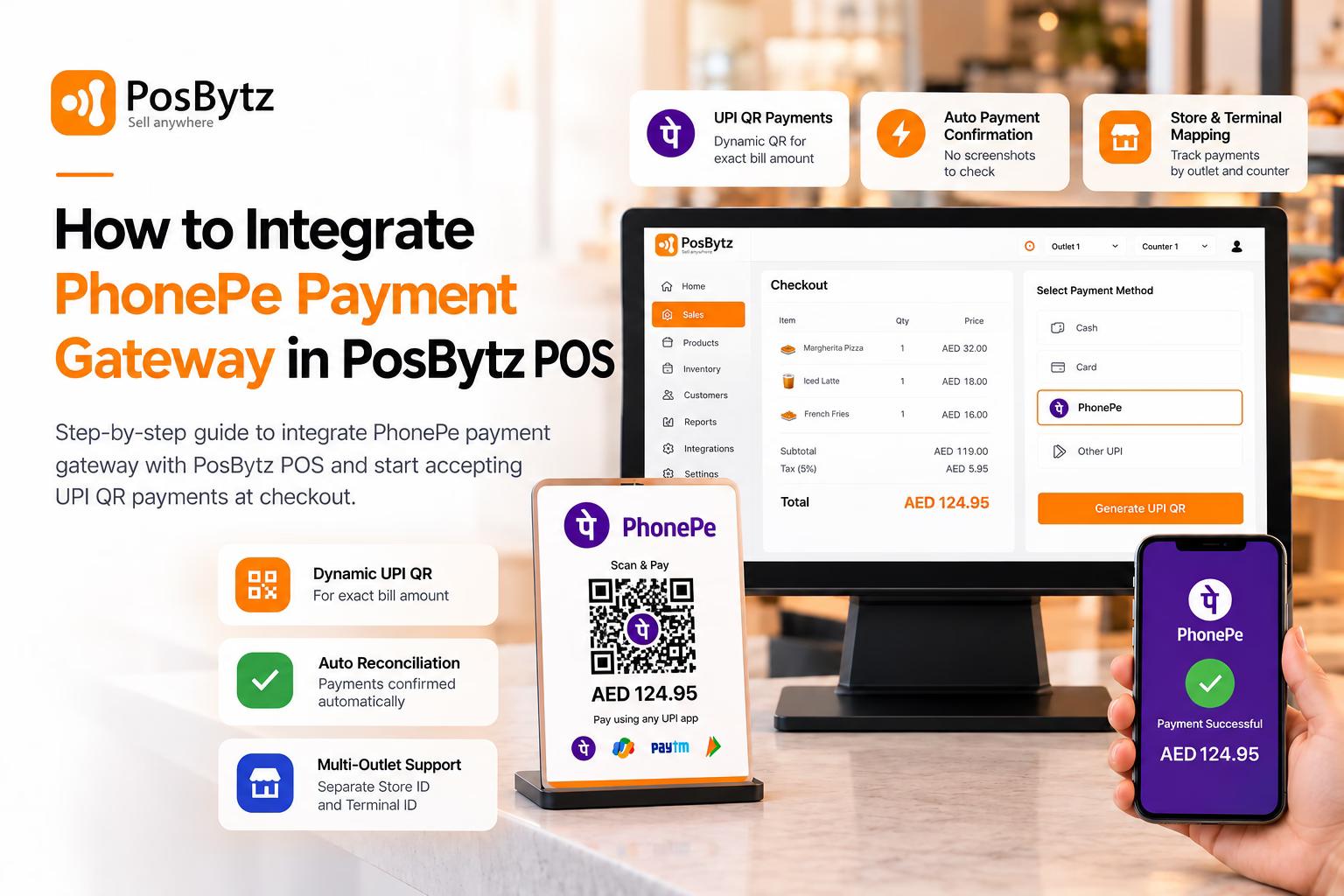


UPI has become the most preferred way to pay at Indian stores, cafes, and restaurants. With PhonePe integration in PosBytz, your cashier can generate a dynamic UPI QR code for the exact bill amount. Customers scan it with any UPI app, and the payment is confirmed automatically, with no screenshots to check.
Setting it up is straightforward. You collect your merchant credentials from PhonePe, enter them in PosBytz Studio, and you are ready to accept payments. This guide covers everything you need to complete the PhonePe payment gateway integration.
What You Need Before You Start
Keep the following ready before you integrate PhonePe payment gateway with PosBytz:
A registered PhonePe merchant account
Admin access to PosBytz Studio at studio.posbytz.com
Your PhonePe merchant credentials, listed below
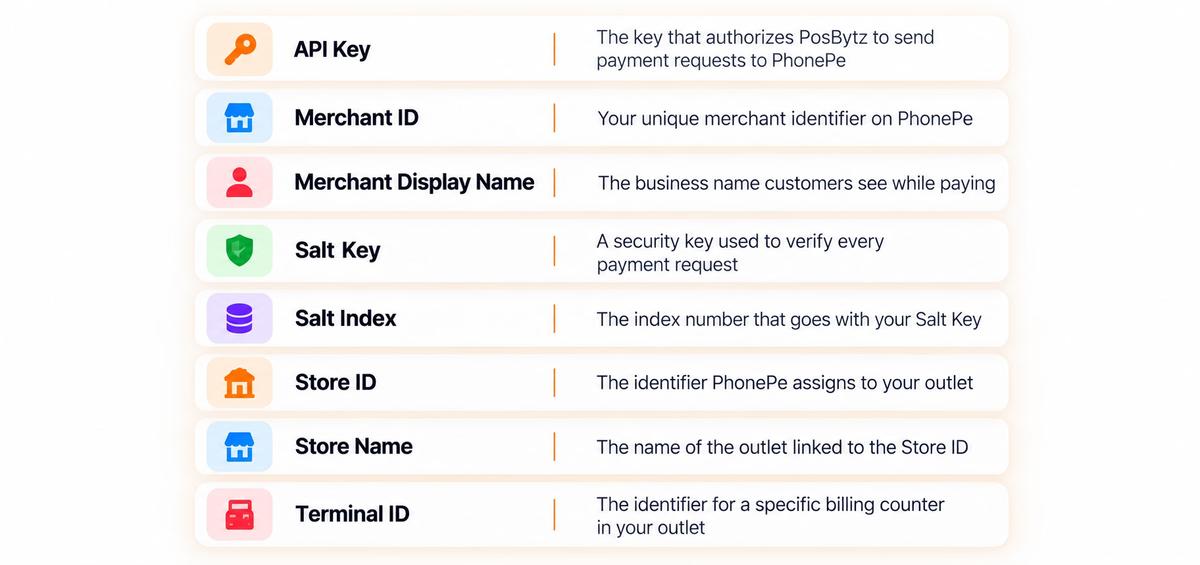
- API Key: The key that authorizes PosBytz to send payment requests to PhonePe.
- Merchant ID: Your unique merchant identifier on PhonePe.
- Merchant Display Name: The business name customers see while paying.
- Salt Key: A security key used to verify every payment request.
- Salt Index: The index number that goes with your Salt Key.
- Store ID: The identifier PhonePe assigns to your outlet.
- Store Name: The name of the outlet linked to the Store ID.
- Terminal ID: The identifier for a specific billing counter in your outlet.
Step 1: Get Your PhonePe Merchant Credentials
PhonePe shares these credentials after your merchant registration is complete. To get them:
- Complete your merchant onboarding with PhonePe Business.
- Contact the PhonePe business or sales team and request your payment gateway credentials for in-store POS payments.
- Ask for the Store ID and Terminal ID for each outlet and billing counter where you want to accept payments.
Tip: If you run more than one outlet or counter, make a simple list that maps each Store ID and Terminal ID to the correct location. This prevents payments from being recorded under the wrong store.
Step 2: Log In to PosBytz Studio
Open studio.posbytz.com in your browser and log in with your admin account.
Step 3: Open Payment Integrations
From the main menu, go to Integrations and select Payment Integrations. You will see the list of payment providers available for your account.
Step 4: Select PhonePe and Enter Your Details
- Select PhonePe from the list of payment providers.
- Fill in each field exactly as shared by PhonePe:
- API Key
- Merchant ID
- Merchant Display Name
- Salt Key
- Salt Index
- Store ID
- Store Name
- Terminal ID
- Save the details.
That’s it. Your PhonePe integration is complete, and PhonePe is ready to use as a payment option at checkout.
How Payments Work After Setup
Once the PhonePe payment gateway integration is active, here is how a payment works at the counter:
- The cashier adds items to the cart and selects PhonePe at checkout.
- PosBytz generates a dynamic UPI QR code with the bill amount already filled in.
- The customer scans the QR code using PhonePe, Google Pay, Paytm, or any other UPI app.
- PhonePe confirms the payment, and the bill is marked as paid automatically.
Each payment is recorded with its Store ID and Terminal ID, so you always know which outlet and counter collected it.
Troubleshooting Common Setup Issues
The connection fails after saving the details.
Check every field for extra spaces or missing characters. The Salt Key and API Key are long values, so copy and paste them instead of typing them manually.
Payment requests are rejected by PhonePe.
Make sure the Salt Index matches the Salt Key shared with you. A mismatch between these two values is one of the most common reasons for failed requests.
Payments appear under the wrong store or counter.
Review the Store ID, Store Name, and Terminal ID entered for each location. Each billing counter must use its own Terminal ID.
No real payments are coming through.
PhonePe provides separate credentials for testing and live use. Confirm with the PhonePe team that you have received production credentials and not test credentials.
Frequently Asked Questions
How long does PhonePe integration take in PosBytz?
Once you receive your credentials from PhonePe, entering them in PosBytz Studio takes only a few minutes. Merchant onboarding with PhonePe may take longer, depending on your verification.
Do I need technical knowledge to integrate PhonePe payment gateway?
No. You only need to copy the credentials shared by PhonePe into PosBytz Studio. No coding or developer support is required.
Can customers pay using apps other than PhonePe?
Yes. The dynamic QR code is UPI enabled, so customers can pay using any UPI app, including PhonePe, Google Pay, Paytm, and BHIM.
Do I need separate Terminal IDs for each billing counter?
Yes. Each counter should have its own Terminal ID, so PosBytz can track payments accurately by store and counter.
Who settles the money from PhonePe payments?
PhonePe settles the funds directly to your registered bank account based on your merchant agreement. PosBytz only records the transaction and never holds your money.
Start Accepting PhonePe Payments Today
PhonePe integration helps you shorten billing queues, stop screenshot checks, and keep every UPI payment matched to its bill. Connect your PhonePe merchant account in PosBytz Studio and start accepting UPI payments at every counter. Start Free Trial
About the author

Saravana Damodaram
Co-Founder & CEO, PosBytz
Saravana Damodaram is the Co-Founder & CEO of PosBytz, a cloud-based POS-ERP platform built for F&B and retail businesses since 2018. He focuses on unified commerce, inventory, and multi-location operations, and has helped over 5,000 merchants across 25+ countries move off fragmented, disconnected tools and run their entire operation, billing, inventory, kitchen, and accounting on one platform.