Razorpay Integration with PosBytz: Setup Guide
How to set up Razorpay payment gateway integration in PosBytz. Get your Key ID and Key Secret, connect your account, and accept online payments.
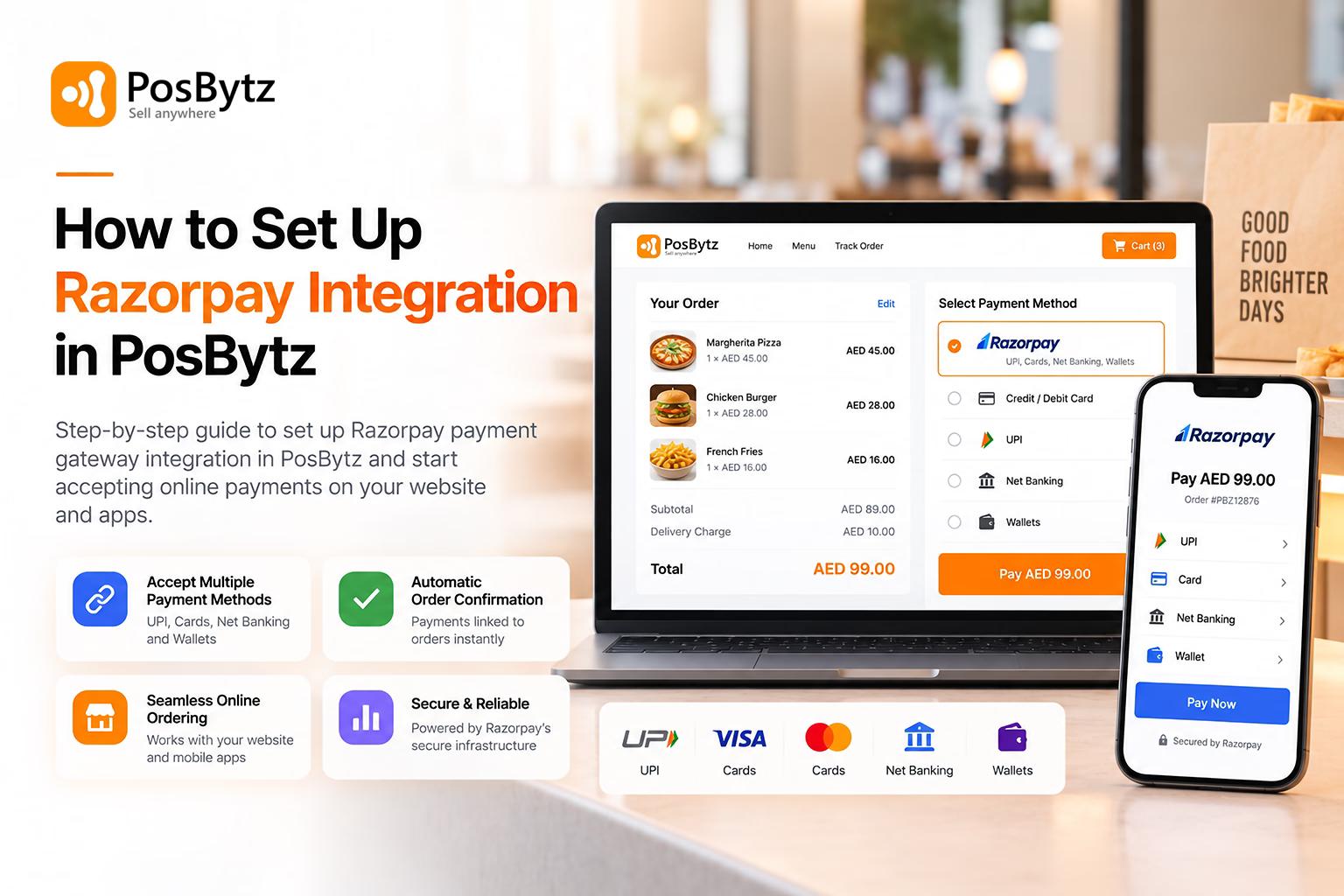


Online customers expect to pay quickly and securely. With Razorpay integration in PosBytz, customers who order from your website or app can pay with UPI, cards, net banking, or wallets, and every payment is linked to its order automatically.
The setup takes only a few minutes. You need two details from your Razorpay account, and the rest is done inside PosBytz Studio. This guide walks you through each step, from generating your API keys to completing the connection.
What You Need Before You Start
Keep the following ready before you begin the Razorpay payment gateway integration:
- An active Razorpay merchant account with KYC completed and live payments enabled
- Razorpay Key ID, a public identifier for your Razorpay account
- Razorpay Key Secret, a private key that authorizes payment requests
- Admin access to PosBytz Studio at studio.posbytz.com
Step 1: Generate Your Razorpay API Keys
Your Key ID and Key Secret are created from the Razorpay Dashboard.
- Log in to your Razorpay Dashboard.
- Switch to Live Mode using the toggle at the top of the dashboard.
- Go to Account & Settings and open API Keys.
- Click Generate Key.
- Copy both the Key ID and the Key Secret, and save them in a secure place.
Important: Razorpay shows the Key Secret only once, at the time you generate it. If you lose it, you will need to generate a new set of keys. Generating new keys deactivates the old ones, so any system using the old keys will stop working until you update it.
Step 2: Log In to PosBytz Studio
Open studio.posbytz.com in your browser and log in with your admin account. PosBytz Studio is the back office where you manage your online store, products, orders, and integrations.
Step 3: Open Payment Integrations
From the main menu, go to Integrations and select Payment Integrations. You will see the list of payment providers available for your account.
Step 4: Select Razorpay and Enter Your Details
- Select Razorpay from the list of payment providers.
- Paste your Key ID into the Key ID field.
- Paste your Key Secret into the Key Secret field.
- Save the details.
That’s it. Your Razorpay integration is now complete, and Razorpay is ready to use as a payment option on your online ordering website and apps.
How Online Payments Work After Setup
Once the Razorpay payment integration is active, here is how an online payment works:
- The customer adds items to the cart on your website or app and proceeds to checkout.
- Razorpay opens with the exact order amount already filled in.
- The customer pays using UPI, a card, net banking, or a wallet.
- After the payment is confirmed, the order is placed and the transaction is recorded against it in PosBytz.
Every Razorpay transaction is saved with its order, which makes matching your online collections with Razorpay settlements much faster.
Troubleshooting Common Setup Issues
The connection fails after saving the details.
Check that you copied the full Key ID and Key Secret without extra spaces at the beginning or end. Pasting the keys again usually fixes this.
Payments are not reaching your bank account.
Make sure you used Live Mode keys. Live keys start with rzp_live_, while test keys start with rzp_test_. Test keys only simulate payments, so no real money is collected.
The integration stopped working suddenly.
This usually happens when someone has regenerated the API keys in the Razorpay Dashboard. Generate a fresh set of keys and update them in PosBytz Studio under Payment Integrations.
Live Mode is not available in your Razorpay Dashboard.
Razorpay enables Live Mode only after your account activation and KYC are complete. Contact Razorpay support if your activation is pending.
Frequently Asked Questions
How long does Razorpay integration take in PosBytz?
Most businesses finish the setup in under 10 minutes. Once your API keys are ready, connecting them in PosBytz Studio takes only a few clicks.
Do I need a developer for the Razorpay payment gateway integration?
No. You only need to copy your Key ID and Key Secret from Razorpay and paste them into PosBytz Studio. No coding is required.
Where can customers pay with Razorpay?
Razorpay works on your PosBytz online ordering website and apps. For in-store payments at the billing counter, you can use the PhonePe integration with dynamic UPI QR codes.
Can I use test keys to try the integration first?
Test keys simulate transactions without real money. Use live keys when you are ready to accept actual payments from customers.
Where can I find my Key Secret if I lost it?
Razorpay does not display the Key Secret again after generation. You will need to generate a new set of keys and update both values in PosBytz Studio.
Who settles the money from Razorpay payments?
Razorpay settles the funds directly to your bank account based on your settlement cycle. PosBytz only records the transaction and never holds your money.
Start Accepting Online Payments with Razorpay
Razorpay integration helps you complete more online orders, reduce cash on delivery risks, and keep every payment matched to its order. Connect your Razorpay account in PosBytz Studio and start accepting online payments today.
About the author

Saravana Damodaram
Co-Founder & CEO, PosBytz
Saravana Damodaram is the Co-Founder & CEO of PosBytz, a cloud-based POS-ERP platform built for F&B and retail businesses since 2018. He focuses on unified commerce, inventory, and multi-location operations, and has helped over 5,000 merchants across 25+ countries move off fragmented, disconnected tools and run their entire operation, billing, inventory, kitchen, and accounting on one platform.