VAT Lookup KSA: How to Verify a VAT Number with ZATCA Taxpayer Lookup
Check any Saudi VAT number free on ZATCA Taxpayer Lookup. Step-by-step guide, CR number search, bulk checks, fake VAT signs and penalties. Updated 2026.
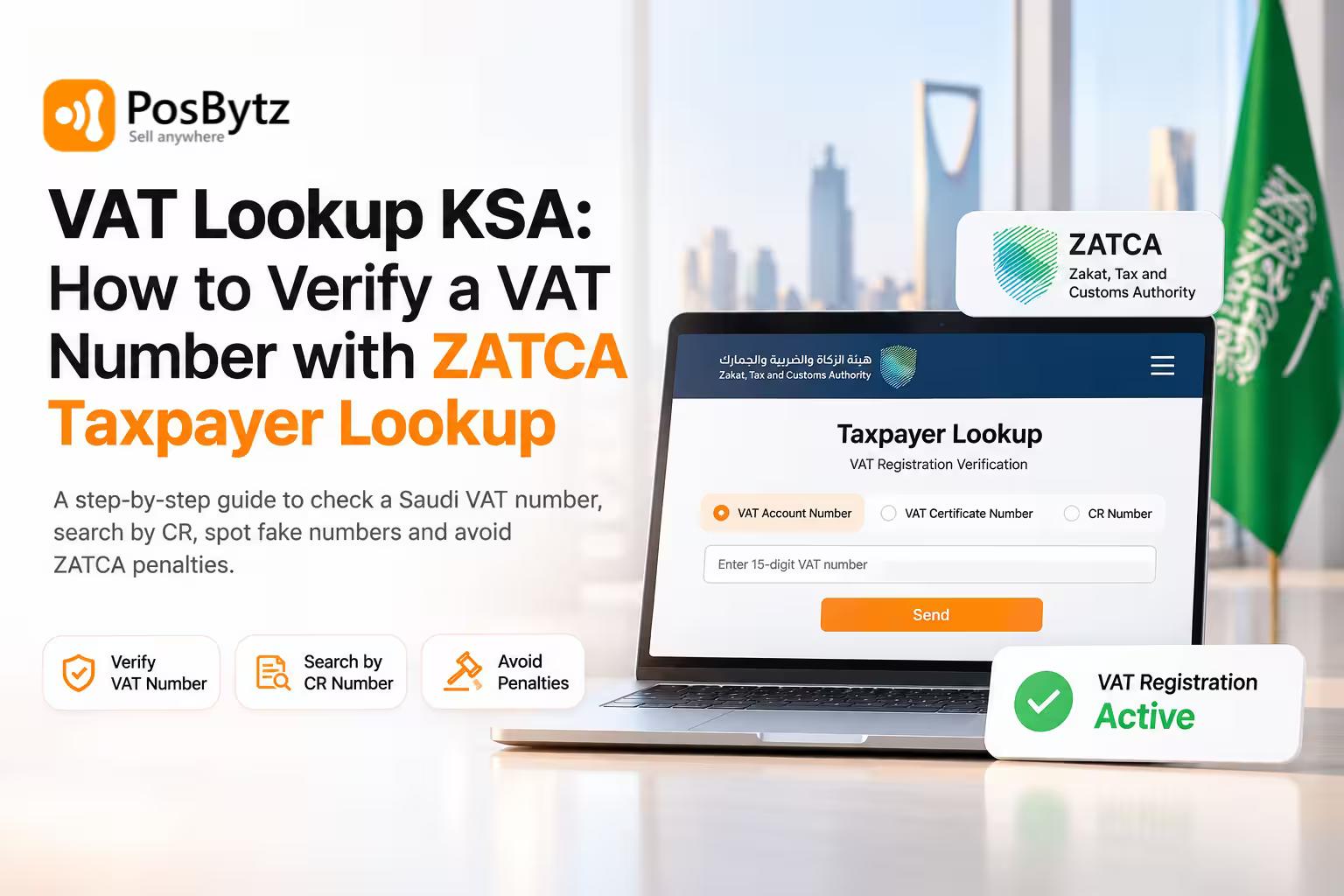


A supplier sends you an invoice with VAT on it. A corporate customer asks for a tax invoice with their VAT number on it. In both cases, the 15-digit number on the paper is only worth something if it's real and active with ZATCA. A quick VAT lookup in KSA tells you that in under two minutes, and it's free.
This guide walks through ZATCA's Taxpayer Lookup tool step by step. It also covers what the official tool doesn't explain: how to read a Saudi VAT number, how to find a company's VAT number from its CR number, how to check hundreds of suppliers at once, how to spot a fake number, and what it costs you when an invalid one slips through.
Quick answer: how to do a VAT lookup in KSA
- Go to zatca.gov.sa and open E-Services.
- Search for the VAT registration verification (Taxpayer Lookup) tool and open it.
- Choose the search type: VAT account number, VAT certificate number or CR number.
- Enter the number, type the image verification code and accept the terms.
- Click Send and check the name and VAT registration status in the result.
Key takeaways
- ZATCA's Taxpayer Lookup is the only official way to confirm a Saudi VAT number. It's free and doesn't need a login.
- A Saudi VAT number has 15 digits and starts and ends with 3. A number that passes that test can still be fake or inactive.
- You can search by VAT number, VAT certificate number or commercial registration (CR) number, and you can check many numbers at once with an Excel upload.
- You generally can't recover input VAT on an invoice that isn't a valid tax invoice from a VAT-registered supplier, so verification protects your VAT refund.
- Under ZATCA Phase 2, a wrong VAT number on a B2B invoice can get the invoice rejected, so check customer numbers too.
What is a Saudi VAT number?
A VAT number, also called a tax registration number or VAT account number, is the 15-digit identifier ZATCA issues to every business registered for VAT in Saudi Arabia. It appears on the business's VAT registration certificate and must be printed on every tax invoice it issues.
A business must register for VAT when its taxable supplies exceed SAR 375,000 over 12 months, or are expected to. Businesses with supplies above SAR 187,500 can register voluntarily. So a small café or a new retail shop may legitimately not have a VAT number. What it can't do is charge you VAT without one.
How to read a Saudi VAT number
A correctly shaped number looks like 3XXXXXXXXX00003. No letters, no spaces, no dashes.
- First digit (digit 1): Always 3 for Saudi Arabia (the GCC country code).
- Entity digits (digits 2 to 9): Unique to the business.
- Check digit (digit 10): A validation digit set by ZATCA.
- Branch digits (digits 11 to 13): Identify the branch or entity group, commonly 000.
- Tax type (digits 14 and 15): 03 for VAT, which is why the number ends in 3.
One thing to be careful about: ZATCA doesn't publish the check-digit formula. Any website that claims to "validate" a Saudi VAT number on its own can only check the shape. It can't tell you whether the business is registered. Only ZATCA can.
VAT number vs CR number
People mix these up all the time, and it's the most common reason a lookup returns nothing.
- Issued by: The VAT number comes from ZATCA. The CR number comes from the Ministry of Commerce.
- Length: A VAT number has 15 digits. A CR number has 10.
- Starts with: A VAT number starts with 3. A CR number usually starts with 1 or, on the newer unified number, 7.
- What it proves: A VAT number shows the business is registered for VAT. A CR number shows it’s legally registered to trade.
- Required on tax invoices: A VAT number is required. A CR number isn’t, though it’s often shown.
A business can have a CR number and no VAT number. It can't issue a valid tax invoice without a VAT number.
How to verify a VAT number on ZATCA Taxpayer Lookup (step by step)
This is the VAT number check most people need: you have a number from an invoice or a supplier form and you want to confirm it's real.
Step 1: Open the ZATCA website. Go to zatca.gov.sa and switch to English using the language option at the top if the site opens in Arabic.
Step 2: Go to E-Services. Click E-Services in the top menu. You don't need to log in for this tool.
Step 3: Find the verification tool. Use the search bar in E-Services and search for "VAT" or "verify". Open the tool ZATCA calls Online Tool for Verifying Official VAT Registration Number. In some menus it appears as VAT Taxable Person Lookup under verification services. Both open the same Taxpayer Lookup screen. You can also go there directly using the link in the quick answer box above.
Step 4: Choose the search type. You'll see three options:
- VAT Account Number (the 15-digit VAT number)
- VAT Certificate Number (printed on the VAT registration certificate)
- CR National Number (the commercial registration number)
To verify a number from an invoice, choose VAT Account Number.
Step 5: Enter the number and the image code. Type the number with no spaces or dashes. Then type the characters shown in the image verification code (captcha).
Step 6: Accept the terms and submit. Tick the terms and conditions box and click Send.
Step 7: Check the result. The result appears on the same page within seconds.
How to read the Taxpayer Lookup result
- Search type
- Shows: the option you picked.
- Check: it confirms what you searched by.
- Number
- Shows: the number you entered.
- Check: make sure there’s no typo.
- Result status
- Shows: whether ZATCA found a record.
- Check: if no record is found, see the errors section below.
- Name
- Shows: the legal name of the business on ZATCA’s records.
- Check: it must match the legal name on the invoice or contract, not just the shop sign.
- VAT registration status
- Shows: whether the registration is active.
- Check: only an active status means the business can currently charge VAT.
- VAT account number
- Shows: the VAT number on record.
- Check: it should match the number printed on the invoice exactly.
What to do next:
- Active and name matches: you're done. Save a record of the check (see the routine section below).
- Active but name doesn't match: ask the supplier for their VAT certificate. The trade name on a shopfront is often different from the legal name, but the invoice must carry the legal name.
- Inactive or deregistered: don't pay VAT on new invoices from this business until it's resolved. Ask the supplier for an explanation in writing.
- No record found: check the number for typos first. If it still fails, treat the number as unverified.
How to find a company's VAT number using its CR number
Sometimes you have the opposite problem. You know the company and its CR number, but not its VAT number. For example, you're setting up a new supplier and their paperwork only shows the CR. This is a VAT lookup rather than a verification.
- Open the same ZATCA Taxpayer Lookup tool.
- Choose CR National Number as the search type.
- Enter the 10-digit CR number and the image code.
- Accept the terms and click Send.
- The result shows the business name, its VAT registration status and its VAT account number.
You can do the same with the VAT certificate number if the supplier has shared their certificate.
Can you search by company name? No. The tool only accepts a VAT number, a VAT certificate number or a CR number. If you only have a name, ask the business for one of these.
VAT verification vs VAT lookup
VAT verification
- You have: the VAT number.
- You want: proof that the number is real and active.
- Search type to choose: VAT Account Number.
- Typical use: checking an incoming invoice.
VAT lookup
- You have: the CR number or VAT certificate number.
- You want: the business’s VAT number.
- Search type to choose: CR National Number or VAT Certificate Number.
- Typical use: onboarding a supplier or customer.
How to check many VAT numbers at once (bulk verification)
If you're cleaning up a supplier list of 200 vendors, checking one at a time isn't realistic. The Taxpayer Lookup tool has a bulk option.
- Open the Taxpayer Lookup tool.
- Select the option For multiple entities verification.
- Download ZATCA's Excel template.
- Fill in one number per row, with its search type, exactly as the template asks. Remove spaces and leading apostrophes.
- Upload the file, enter the image code, accept the terms and submit.
- Download the results as an Excel file.
Rows that fail come back with the message "No data retrieved. Please review the entered data." Fix those rows and upload them again. Anything that still fails after a correction goes on a follow-up list for the supplier.
Tip: run the bulk check once a quarter on your full supplier list. Businesses deregister, change legal names and close branches, and an invoice from last year doesn't prove anything about this year.
How to check the VAT number on an invoice and its QR code
Under ZATCA's e-invoicing rules, simplified tax invoices (B2C) must carry a QR code, and under Phase 2 standard tax invoices (B2B) carry one as well. Scanning it with any e-invoice QR reader shows at least:
- Seller name
- Seller VAT number
- Invoice date and time
- Invoice total including VAT
- VAT amount
Here's a two-minute invoice check:
- Scan the QR code and compare the seller VAT number in the QR with the number printed on the invoice.
- Compare the seller name in the QR with the legal name on the invoice.
- Check that the VAT amount in the QR matches the printed VAT.
- Run the VAT number through ZATCA Taxpayer Lookup.
A mismatch in steps 1 to 3 is a strong warning sign. But a matching QR code doesn't prove registration on its own, because anyone can generate a QR code. Step 4 is the one that counts.
For background on what a compliant invoice must contain, see our guide on how e-invoicing works in KSA.
Signs of a fake or invalid VAT number
Watch for these red flags when a new supplier or customer hands you a VAT number:
- It isn't exactly 15 digits, or it contains letters, spaces or symbols
- It doesn't start with 3 or doesn't end with 3
- It's actually a 10-digit CR number presented as a VAT number
- ZATCA Taxpayer Lookup returns no record, or shows the registration as inactive
- The name on ZATCA's record doesn't match the legal name on the invoice
- The VAT number changes from one invoice to the next
- The supplier can't or won't share a VAT registration certificate
- The invoice has no QR code, or the QR details don't match the printed invoice
- A very small new supplier charges VAT, but their trading volume is well below the registration threshold and they can't show a certificate
None of these proves fraud on its own. Each one is a reason to stop, verify and ask before paying VAT.
Common VAT lookup errors and how to fix them
- “No data retrieved”: This usually means a typo, an extra digit or a hidden space from copy-paste, so retype the number by hand, digit by digit.
- No result for a 10-digit number: You probably entered a CR number with the VAT search type, so switch the search type to CR National Number.
- New supplier not found: Newly registered businesses can take a few working days to appear, so ask for the VAT certificate and recheck after a few days.
- Name doesn’t match the invoice: The invoice likely uses the trade name instead of the legal name, so ask the supplier to reissue it with the legal name.
- Status shows inactive: The business has deregistered or its registration was cancelled, so don’t pay VAT on new invoices and ask the supplier for written clarification.
- Image code keeps failing: The code expired or was mistyped, so refresh it and enter it again.
- Bulk upload rejected: The file doesn’t match ZATCA’s template, so download a fresh template and paste values only.
If the tool itself is down or you need confirmation from ZATCA directly, contact the ZATCA call center on 19993 or use the contact options on zatca.gov.sa.
Why VAT number verification matters: input VAT and penalties
It protects your VAT refund
When you file your VAT return, you deduct the input VAT you paid to suppliers from the output VAT you charged customers. The VAT Implementing Regulations generally require you to hold a valid tax invoice from a VAT-registered supplier to make that deduction. If the supplier's VAT number turns out to be invalid or inactive, ZATCA can reject the deduction in an audit. You then owe the VAT you deducted, plus penalties.
For a restaurant buying SAR 80,000 of stock and services a month (before VAT), that's up to SAR 12,000 of input VAT every month that depends on supplier invoices being valid.
Penalties ZATCA can apply
These are taken from ZATCA's published VAT penalties.
Issuing a tax invoice while not VAT registered: up to SAR 100,000.
- Failing to register for VAT when required: SAR 10,000.
- Submitting an incorrect return that lowers the tax due: 50% of the difference between the tax calculated and the tax due.
- Late filing of a VAT return: 5% to 25% of the tax due.
- Late payment: 5% of the unpaid tax for each month or part of a month.
- Not keeping invoices, books and records: up to SAR 50,000.
- Repeating the same violation within three years: the fine can be doubled.
The first penalty falls on the supplier who issues the invoice. The incorrect return penalty can fall on you, the buyer, if you deducted input VAT you weren't entitled to.
It keeps your own e-invoices from being rejected
Under ZATCA Phase 2, every standard (B2B) tax invoice is cleared by ZATCA's Fatoora platform before it reaches the customer. The platform checks VAT number formats. If your own VAT number is wrong in your system, invoices are rejected with error 1001 ("Seller VAT number is invalid"). If a B2B invoice is missing the buyer's VAT number, it's rejected with error 1002. So when a corporate customer gives you their VAT number, verify it before you save it to their customer profile. One wrong digit means every invoice to that customer fails.
More detail in our ZATCA Phase 2 FAQs.
This section is general information, not tax advice. ZATCA rules and penalty amounts can change. Check the current guidance on zatca.gov.sa or speak with a registered tax advisor.
When to verify: a simple routine for restaurants and retailers
Verification works best when it's a habit, not a panic before an audit. Here's a routine that fits most restaurants, cafés, supermarkets and retail chains.
- Adding a new supplier: Purchasing or accounts should verify the VAT number, confirm the legal name and save the VAT certificate.
- Adding a B2B customer (catering, corporate accounts, wholesale): Sales or accounts should verify the customer’s VAT number before saving it.
- First invoice from a new supplier: Accounts should check the QR code against the printed invoice and the ZATCA record.
- Any large or one-off purchase (equipment, fit-out, renovation): The finance manager should verify before paying.
- Every quarter, before the VAT return: Accounts should bulk check the full supplier list.
- Supplier changes bank details, name or address: Accounts should verify again and ask for an updated certificate.
Keep proof of every check
If ZATCA ever questions a deduction, you'll want to show you did your due diligence. For each check, save:
- A screenshot or PDF of the Taxpayer Lookup result
- The date of the check and who did it
- The supplier's VAT certificate
- Any emails with the supplier about mismatches
Store these against the supplier record, not in someone's inbox. For multi-branch businesses, keep one central supplier list so every outlet buys from verified vendors. Our guide to restaurant inventory for multiple outlets covers how to centralise purchasing.
How PosBytz keeps VAT numbers right on every invoice
Verifying a VAT number takes two minutes. The harder part is keeping verified numbers correct across thousands of invoices, branches and staff. That's where most mistakes happen: a cashier types a customer's VAT number by hand, a branch saves an old supplier record, or a number gets copied with a hidden space.
PosBytz is a cloud POS and ERP for restaurants and retail in Saudi Arabia, with ZATCA e-invoicing built into billing. Here's how it fits the routine above.
Issue compliant invoices: PosBytz offers ZATCA-compliant e-invoicing, Phase 1 and Phase 2 ready, with QR codes, XML UBL 2.1, cryptographic stamps and Fatoora integration.
- Get B2B invoices cleared the first time: Save each verified customer VAT number once on the customer profile, so standard tax invoices pick it up automatically instead of being retyped at the till.
- Keep your own VAT number right: Your business VAT details are set once in settings and used across every outlet, which avoids seller VAT errors branch by branch.
- Record supplier purchases with VAT: Purchases and inventory are managed in the same system, so input VAT is tracked against each supplier.
- Prepare the VAT return: PosBytz includes accounting software with financial and tax reports, plus sync to Zoho Books through the Zoho Books integration.
- Run several branches: One central system for all outlets, so suppliers and customers are verified once and used everywhere.
If you're a small business just getting started with e-invoicing, you can begin with our free e-invoicing software in Saudi Arabia. If you run a restaurant or a shop and want billing, inventory and invoicing in one place, see our restaurant POS software and retail billing software.
Want ZATCA-ready invoices with verified VAT numbers on every bill? Book a free PosBytz demo or see pricing.
Frequently asked questions
Is ZATCA Taxpayer Lookup free?
Yes. The VAT registration verification tool on zatca.gov.sa is free and doesn't need a login. You only need the number and the image verification code.
How many digits is a Saudi VAT number?
15 digits. It starts with 3 and ends with 3, for example 3XXXXXXXXX00003.
Can I check a VAT number by company name in Saudi Arabia?
No. ZATCA's tool searches by VAT account number, VAT certificate number or CR number only. Ask the business for one of these.
How do I find a company's VAT number from its CR number?
Open ZATCA Taxpayer Lookup, choose CR National Number as the search type, enter the CR number and the image code, and submit. The result shows the business's VAT account number and registration status.
Why can't I find a newly registered business?
New registrations can take a few working days to appear. Ask the business for its VAT registration certificate in the meantime and recheck later.
Is a VAT number format checker enough?
No. A format checker only confirms the number has the right shape. It can't tell you whether the business is registered or active. Always confirm on ZATCA.
Can I verify a UAE or other GCC VAT number on ZATCA?
No. ZATCA's tool only covers Saudi VAT registrations. UAE tax registration numbers (TRNs) are verified on the UAE Federal Tax Authority's website, and each GCC country runs its own check.
What should I do if a supplier's VAT number is invalid?
Don't pay VAT on the invoice until it's resolved. Ask the supplier for their VAT certificate and a corrected invoice. If they aren't registered, they shouldn't charge you VAT at all.
What's the difference between a VAT number and a tax identification number (TIN)?
In Saudi Arabia, ZATCA also issues a 10-digit TIN for zakat and other tax purposes. The 15-digit VAT number is the one that must appear on tax invoices and the one you check in Taxpayer Lookup.
Final word
A VAT lookup in KSA is one of the cheapest controls a business can run. It's free, it takes two minutes, and it protects your input VAT, your audit record and the invoices you send to corporate customers. Make it part of supplier and customer onboarding, run a bulk check every quarter, and keep proof of each check. Your VAT return will thank you for it.
About the author

Saravana Damodaram
Co-Founder & CEO, PosBytz
Saravana Damodaram is the Co-Founder & CEO of PosBytz, a cloud-based POS-ERP platform built for F&B and retail businesses since 2018. He focuses on unified commerce, inventory, and multi-location operations, and has helped over 5,000 merchants across 25+ countries move off fragmented, disconnected tools and run their entire operation, billing, inventory, kitchen, and accounting on one platform.