How to Set Up and Use a POS Restaurant System
Learn how to set up and use a POS restaurant system in 7 easy steps, from installation to menu setup, hardware, and staff training.
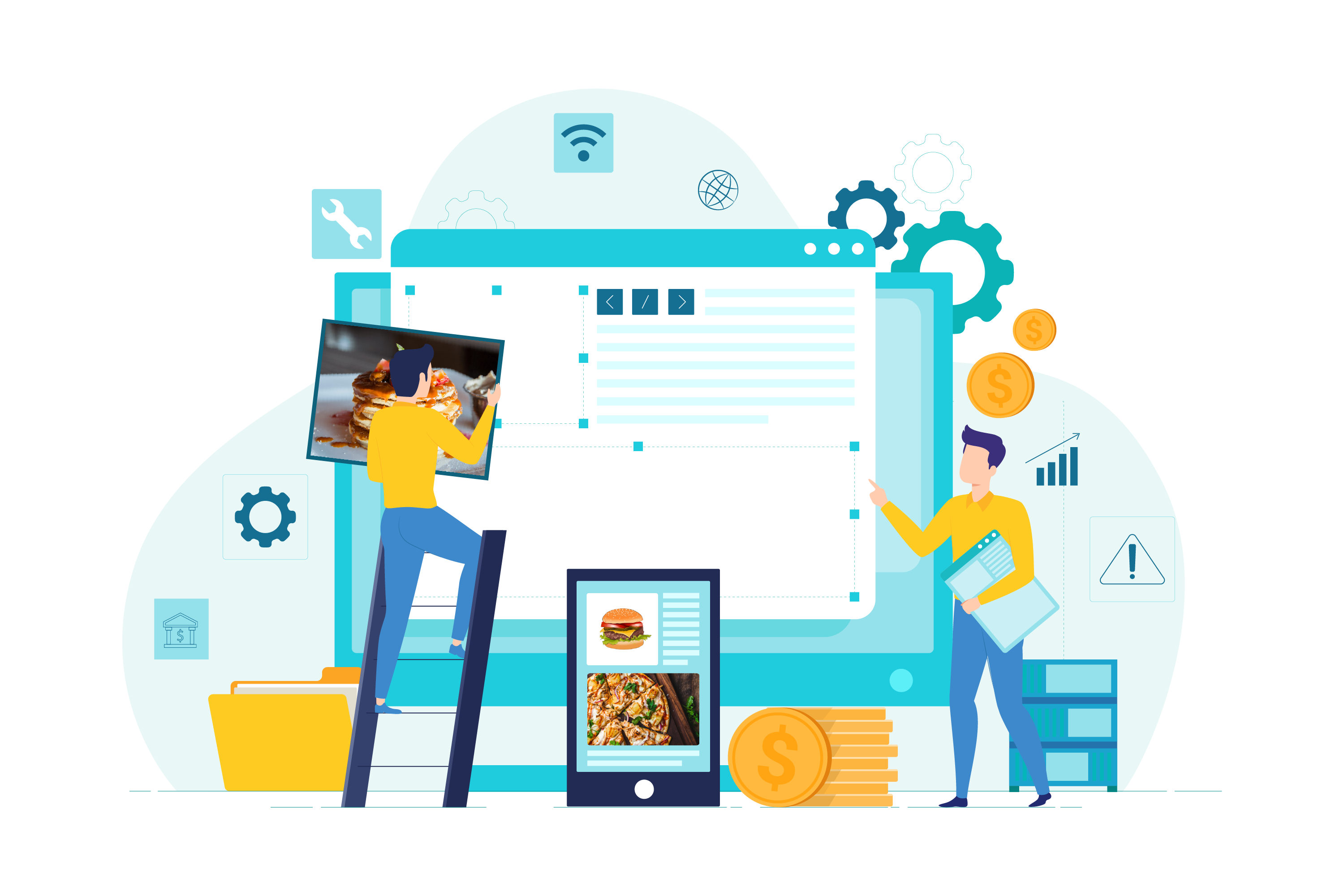


Setting up a POS restaurant system doesn't have to be complicated. Whether you're switching from a legacy terminal or installing your first digital system, the right process gets your restaurant up and running without disrupting service. This guide walks you through the seven steps to configure your system properly, plus how to use it day to day once it's live.
A good restaurant management software platform should be simple enough to install without a dedicated IT team. PosBytz, for example, works across devices, just download the software or get the app on your tablet, log in, and you can start managing orders across every device in your restaurant. Ongoing customer support is also available to help your team get comfortable with the all in one restaurant POS system as they onboard.
7 Steps to Set Up Your Restaurant POS System
Choosing a reliable cloud based POS system for small business is the first decision you'll make. Once you've selected your platform, these seven steps will get your system ready for daily operations:
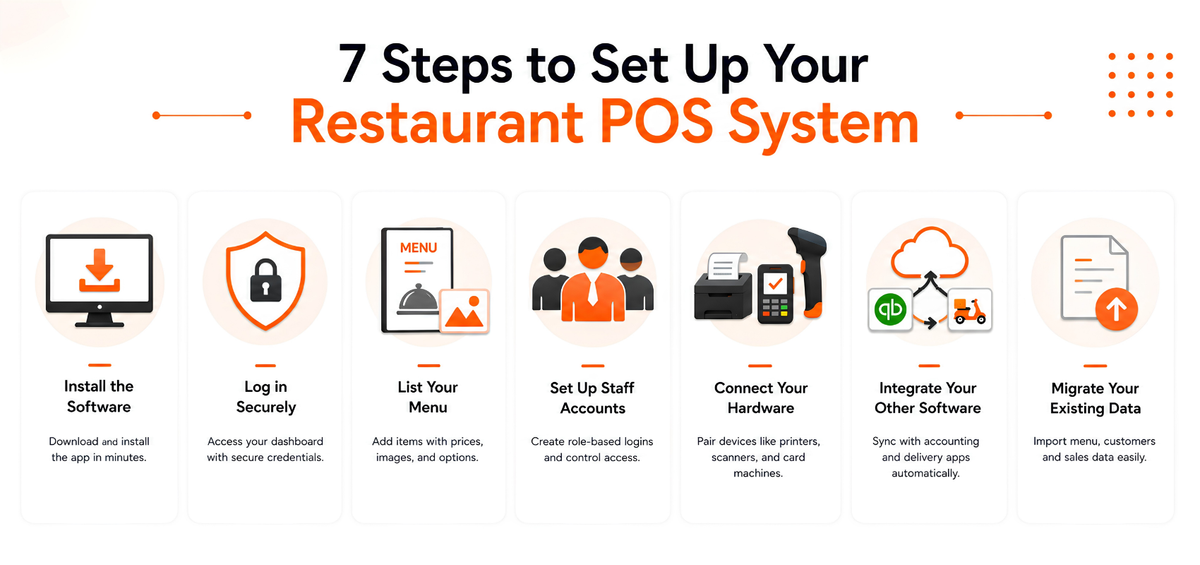
- Install the software. Download the app on your preferred device, iPad, Android tablet, or PC. Most cloud POS systems install in minutes without any technical setup.
- Log in securely. Use your unique credentials (usually email and password) to access your dashboard. This keeps your sales and customer data protected.
- List your menu. Add items by category, with clear descriptions, pricing, and images. Include add-ons, toppings, and dietary indicators such as veg/non-veg so staff and customers can find what they need quickly.
- Set up staff accounts. Create separate logins for managers, admins, and cashiers. This gives you visibility into individual performance and keeps access controlled by role.
- Connect your hardware. Pair cash drawers, card machines, QR scanners, receipt printers, and kitchen display screens with your device.
- Integrate your other software. Connect your POS to your accounting software and any third-party delivery apps you use, so sales, inventory, and payouts stay in sync automatically.
- Migrate your existing data. If you're switching from another system, export your menu, customer, and sales data (typically as CSV or Excel) and import it into your new POS to avoid starting from scratch.
How to Use a Restaurant POS System Day to Day
Once your system is live, it becomes the central point for nearly every operation in your restaurant. A well-configured POS supports real-time inventory tracking, faster table turnover, and integrated payments that cut down wait times for customers. In practice, your POS is the hub that data flows through and connects to every other tool running your business, from your kitchen display system to your accounting software.
Managing Orders and Billing
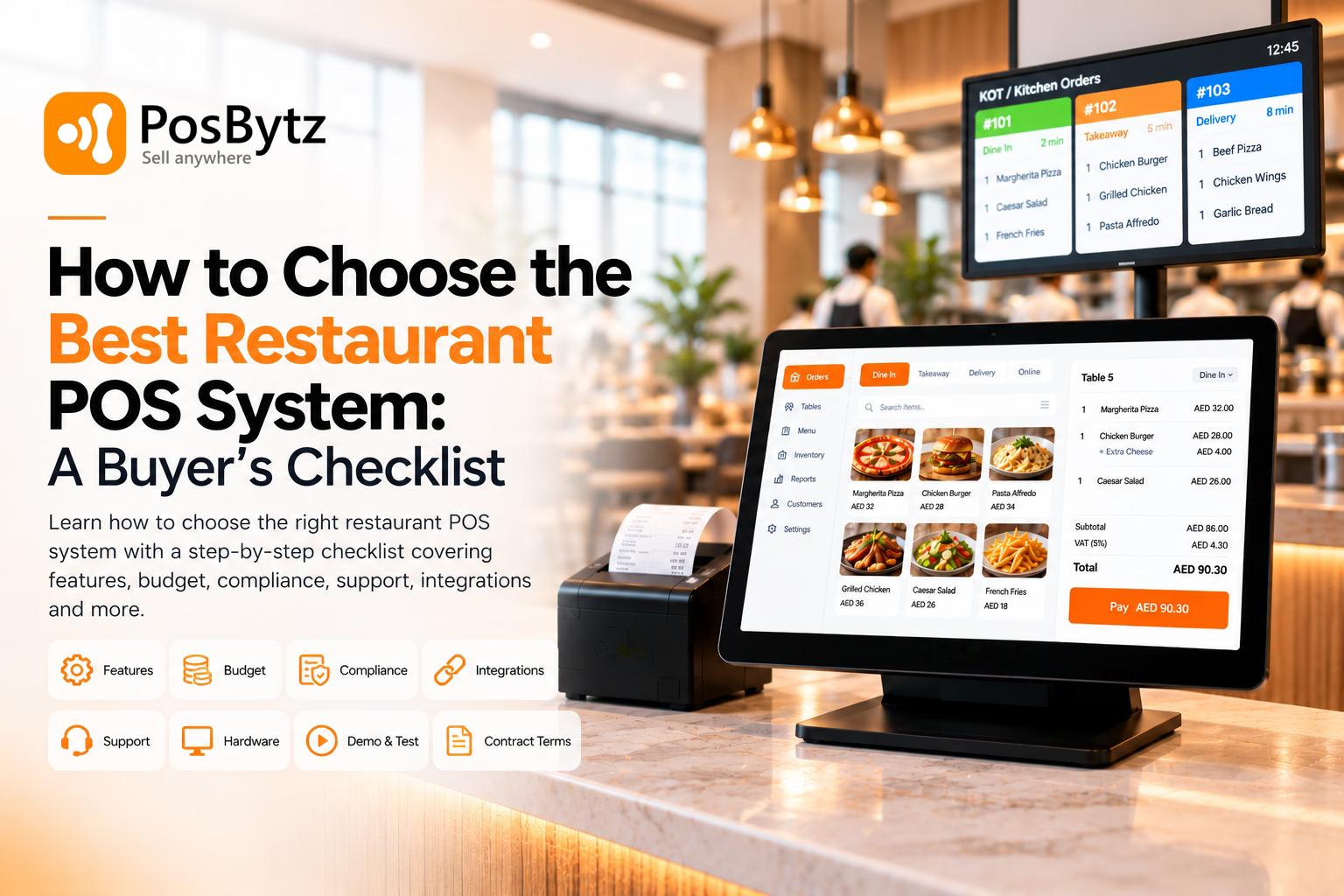
Staff can take dine-in, takeaway, delivery, and online orders from a single screen, apply modifiers, split bills, and process payments without switching between systems. This reduces errors during peak hours and keeps table turnover fast.
Tracking Inventory in Real Time
As orders are placed, ingredient-level stock is deducted automatically, so you always know what's on hand. For multi-location restaurants, this same visibility extends across every outlet from one dashboard. If you manage inventory across several branches, a restaurant inventory management system built into your POS removes the need for manual stock counts.
Reviewing Performance
A modern all in one restaurant POS system gives you more than billing. You can also manage:
- Fast ordering and delivery fulfillment
- Detailed POS reports for sales analysis
- Staff scheduling and payout management
- Real-time inventory management and table tracking
What to Look for in a Restaurant POS Setup
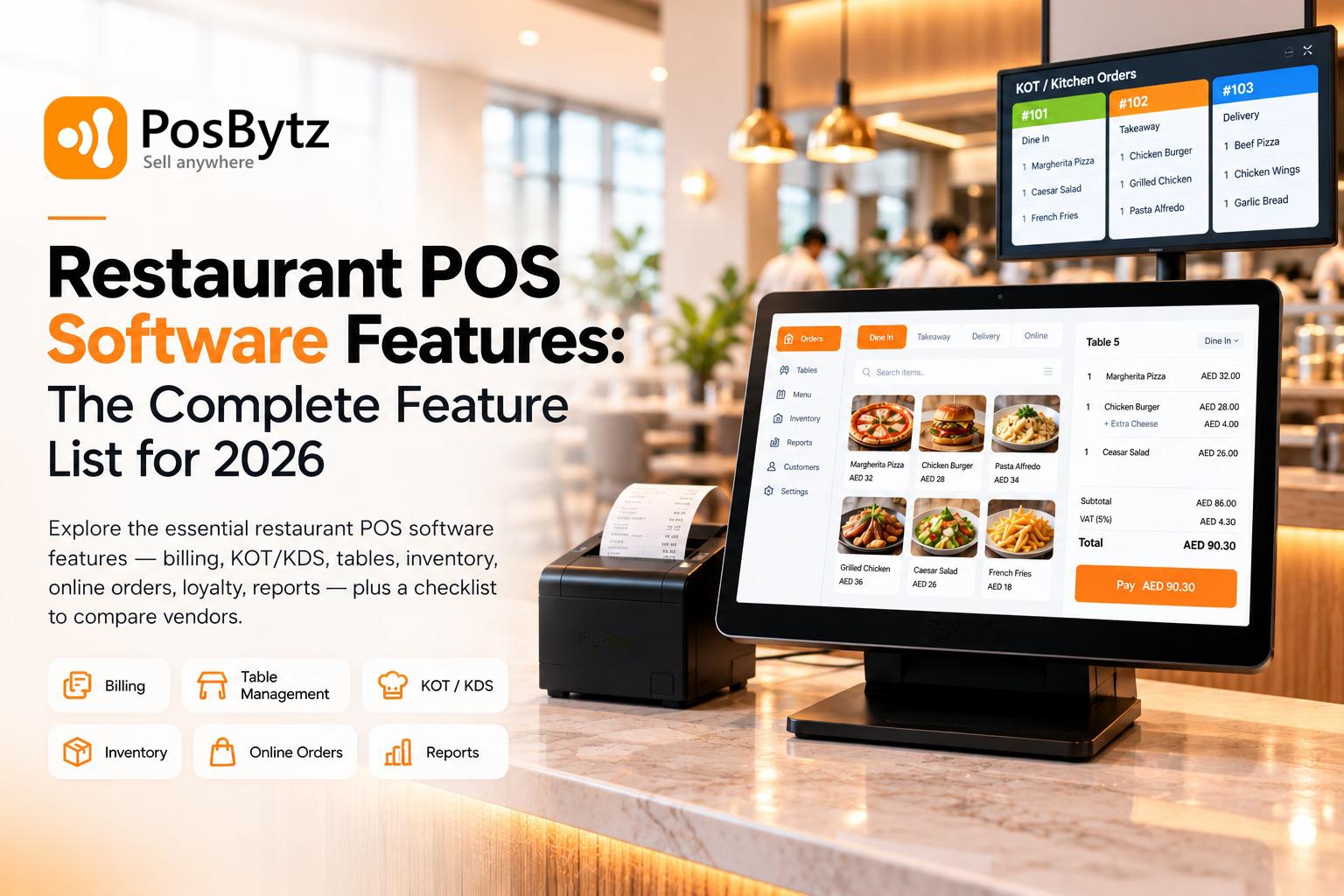
Before you commit to a system, check that it covers your operational basics: menu flexibility, hardware compatibility, and support during setup. A system that connects ordering, kitchen operations, and inventory in one place will save you from stitching together separate tools later. For restaurants adding contactless ordering, pairing your POS with a restaurant QR code ordering system can reduce wait times and free up staff for other tasks.
Frequently Asked Questions (FAQ)
1. What hardware is needed for a restaurant POS?
The exact hardware depends on your restaurant's setup, but common essentials include a cash drawer, receipt printer, card payment terminal, and a QR code scanner connected to your cloud based POS system for small business.
2. What's the difference between POS hardware and software?
Software is the digital restaurant management software installed on your tablet or PC that runs your billing, inventory, and reporting. Hardware refers to the physical devices, printers, card machines, and cash drawers, that connect to it.
3. How long does it take to set up a restaurant POS system?
Most cloud-based systems can be installed and configured within a day, including menu setup and staff accounts. Larger restaurants with multiple outlets or complex menus may need a few extra days to migrate existing data and train staff.
4. Can I switch to a new POS system without losing my existing data?
Yes. Most POS providers support data migration from CSV or Excel exports, allowing you to bring over your menu, customer records, and historical sales data during setup.
5. What should a good restaurant POS system do?
It should offer straightforward menu management, dependable support, and an interface your staff can learn quickly, so orders keep moving even during your busiest shifts.
Conclusion
Setting up your restaurant POS system doesn't need to be a drawn-out process. With a clear step-by-step approach, installing the software, connecting hardware, listing your menu, and setting up staff accounts, you can have your system running smoothly within a day. Before you commit to a platform, confirm it covers the features your kitchen and front-of-house teams actually need.
Don't let outdated technology slow your restaurant down. Centralize your ordering, kitchen, and inventory operations into one platform. Upgrade to PosBytz today and simplify how your restaurant runs.
Master Your Setup and Operations: The Smart Path Forward
Don’t let complex technology or legacy hardware hold your restaurant back. Centralize your ordering, kitchen, and inventory into one powerful growth engine.
Upgrade to PosBytz Today and simplify your restaurant operations with our all-in-one management platform.
Related Sources
- Read More: Best POS Software for Restaurants in UAE
- Read More: Best Quick Service Restaurant (QSR) POS Systems
- Read More: Best Cloud Kitchen POS Software
About the author

Saravana Damodaram
Co-Founder & CEO, PosBytz
Saravana Damodaram is the Co-Founder & CEO of PosBytz, a cloud-based POS-ERP platform built for F&B and retail businesses since 2018. He focuses on unified commerce, inventory, and multi-location operations, and has helped over 5,000 merchants across 25+ countries move off fragmented, disconnected tools and run their entire operation, billing, inventory, kitchen, and accounting on one platform.