How to Choose the Best Restaurant POS System: A Buyer's Checklist
Learn how to choose the best restaurant POS system with a step-by-step buyer's checklist covering budget, compliance, support, contracts, demos and switching.


Quick Answer: How Do You Choose a POS System for a Restaurant?
To choose a POS system for your restaurant, follow these steps:
- Map how your restaurant takes, prepares, and serves orders.
- List every sales channel you use or plan to use.
- Set a budget based on total cost of ownership, not just the monthly fee.
- Shortlist vendors that cover your must-have features.
- Confirm local tax and e-invoicing compliance for your country.
- Check hardware, integrations, and offline reliability.
- Compare support hours, contract terms, and data ownership.
- Score each vendor, run a live demo with your own menu, and test the system in a short pilot before you sign.
The best restaurant POS is not the one with the longest feature list. It is the one that fits your service model, your market, and your budget, and that your staff can use comfortably during a busy shift.
Why Choosing the Right Restaurant POS Matters
Your POS sits in the middle of almost everything your restaurant does: taking orders, sending tickets to the kitchen, collecting payments, tracking stock, and reporting sales. Choosing a POS system that doesn't fit your workflow tends to show up as slower service, kitchen mistakes, staff workarounds, and reports you can't trust.
Switching later is possible, but it costs time, retraining, and sometimes contract exit fees. A structured buying process up front reduces that risk.
Signs It's Time to Choose a New POS System
Many restaurant owners start looking for a new POS because of a specific problem. You are probably ready to switch if:
- Online and delivery orders are re-typed into the POS by hand
- The system stops billing whenever the internet drops
- You can't see sales or stock unless you are physically in the restaurant
- The POS doesn't handle your country's tax or e-invoicing rules
- Adding a new outlet means buying a separate system
- Reports don't match your cash, card, or stock counts
- Support is slow or unavailable during evenings and weekends
- You pay for add-ons and fees you didn't expect
- Staff avoid features because the system is confusing
If two or more of these sound familiar, use the checklist below to compare options.
Before You Start: Who Should Be Involved in Choosing a POS System
A POS decision affects more than the owner. Involve:
- The owner or general manager: budget, reporting, and long-term growth
- A cashier and a server or captain: billing speed and ease of use
- The head chef or kitchen lead: ticket routing and kitchen display needs
- Your accountant: tax settings, invoice formats, and accounting integration
- Whoever handles IT or devices: hardware, network, and printer setup
Getting their input early helps you avoid choosing a system that looks good in a sales presentation but frustrates the people using it every day.
How to Choose a POS System: The Step-by-Step Buyer's Checklist
Step 1: Map Your Restaurant's Workflow
Before you look at any vendor, write down how an order moves through your restaurant today.
Answer these questions:
- Do guests order at a counter, at the table, through a QR code, or online?
- Do they pay before or after the food is prepared?
- How many kitchen stations need separate tickets (kitchen, bar, desserts)?
- How many staff use the POS at the same time during peak hours?
- What takes the most time or causes the most mistakes today?
This workflow becomes your test script later. A good POS should make each step simpler, not add new ones.
Step 2: List Every Sales Channel You Need
A restaurant POS has to handle orders from every channel you use, ideally in one queue.
List your current and planned channels:
- Dine-in
- Takeaway and pickup
- Phone orders
- Your own website or app
- QR table ordering
- Delivery aggregators used in your market
- Catering or bulk orders
- More than one brand from the same kitchen (for cloud kitchens)
If a channel is on your one-year plan, include it now. Choosing a POS system that can't grow into your next channel is a common reason restaurants switch again within a short time.
Step 3: Set a Realistic Budget Based on Total Cost of Ownership
The subscription price is only one part of what you will pay. When you choose a POS system, compare the total cost of ownership over at least two to three years.
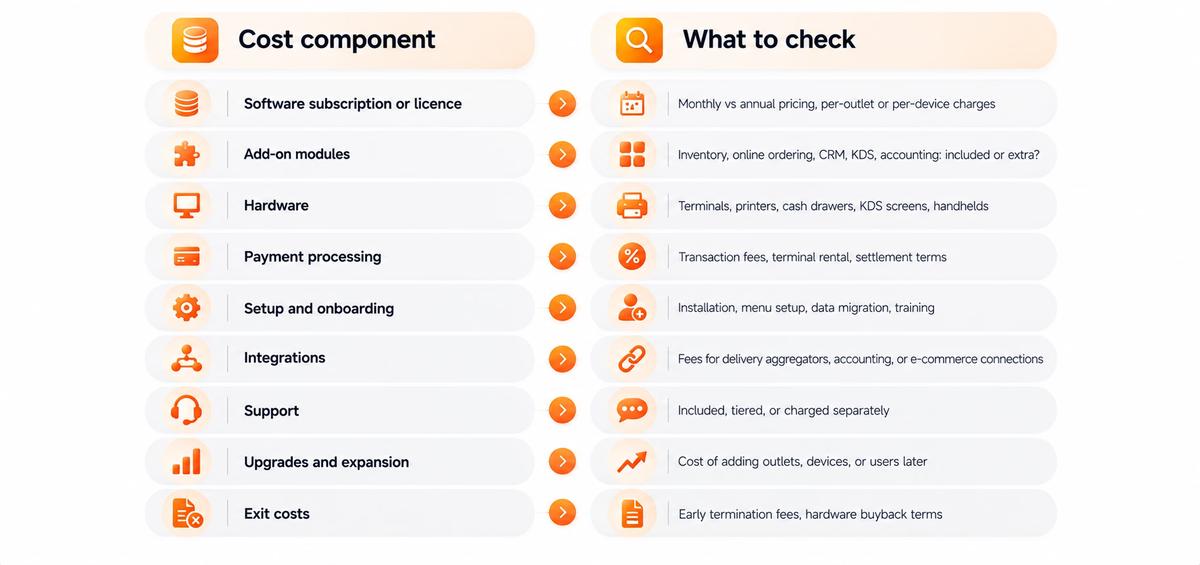
Tip: A low monthly price can become expensive if core features are sold as add-ons. Ask every vendor for a written quote that covers your actual setup. For a breakdown of typical cost factors, see how much a restaurant POS system costs.
Step 4: Decide Between Cloud-Based and On-Premise POS
This decision shapes almost everything else, so make it early.
Choose a cloud-based POS if you:
- Want to check sales and reports from anywhere
- Run, or plan to run, more than one outlet
- Prefer automatic updates and vendor-managed backups
- Want lower upfront hardware and licence costs
Consider an on-premise or locally installed POS if you:
- Operate somewhere with very unreliable internet and limited remote needs
- Have an existing local server setup and in-house IT support
Many modern cloud systems offer an offline mode, which reduces the main risk of cloud POS. Ask exactly which functions work offline. Read more about cloud restaurant POS and the different types of restaurant POS systems.
Step 5: Shortlist Vendors That Cover Your Must-Have Features
Divide features into three groups before you contact vendors:
- Must-have: you can't run service without it (for example, billing, KOT routing, split bills, offline mode, tax compliance)
- Important: you need it within the next 6 to 12 months (for example, online ordering, inventory, loyalty)
- Nice to have: useful but not a deciding factor
Only shortlist vendors that cover all your must-haves today, not on a future roadmap. For a detailed explanation of what each feature does, see our guide to restaurant POS software features.
Step 6: Confirm Local Tax and E-Invoicing Compliance
A POS built for another market may not handle your tax rates, invoice formats, currency, or language. Check compliance before you check anything else on your shortlist, because it is often a hard requirement.
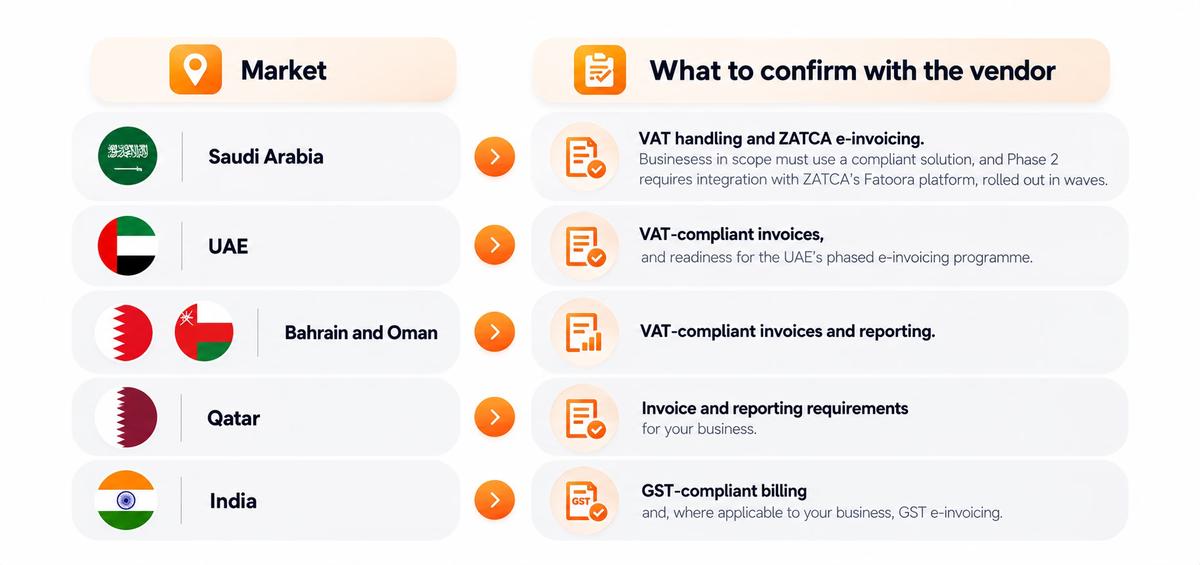
Also check Arabic or local-language receipts if your staff or guests need them, and correct currency formatting. Always confirm your specific obligations with your accountant or tax advisor. If you operate in Saudi Arabia, see our guide to ZATCA e-invoicing Phase 2.
Step 7: Check Hardware Compatibility
Some POS systems only run on their own proprietary hardware. Others work on devices you may already own.
Ask:
- Does it run on Android, iPad, Windows, or a web browser?
- Can I reuse my existing printers, cash drawers, and card terminals?
- Which kitchen printers and KDS screens are supported?
- Are handheld devices supported for table-side ordering?
- If hardware is bundled, what happens to it if I cancel?
Device flexibility can significantly lower your upfront cost and make it easier to replace a broken device quickly.
Step 8: Review Integrations With the Tools You Already Use
Your POS should share data with the rest of your business instead of creating double entry.
Check integrations for:
- Accounting software
- Delivery aggregators active in your city
- Your website, online store, or ordering app
- Payment terminals and gateways
- CRM, loyalty, or marketing tools
- HR and payroll
Ask for a current list of live integrations, not planned ones, and ask whether each integration is native or relies on a third-party connector. See common restaurant POS integrations.
Step 9: Test Ease of Use and Training Time
Restaurants often have new staff joining, and every new hire needs to learn the POS. A system that takes too long to learn slows down service and leads to mistakes.
During evaluation, check:
- Can a new cashier bill a typical order after a short walkthrough?
- Are common actions (modifiers, discounts, split bills) reachable in a few taps?
- Does the vendor provide training sessions, videos, or a help centre?
- Is the interface available in the languages your staff use?
Let your actual staff try the system, not just the manager.
Step 10: Evaluate Customer Support and Onboarding
Restaurants work evenings, weekends, and holidays. Your POS vendor's support should match those hours.
Ask:
- What are the support hours and time zone?
- Which channels are available: phone, chat, email, WhatsApp, on-site?
- What is the typical response time for urgent issues during service?
- Is onboarding included, and who sets up the menu and tax settings?
- Is there local support in your country or language?
Ask existing customers about their real support experience, not just the vendor's promise.
Step 11: Check Security and Data Ownership
Your POS holds sales records, customer data, and payment information.
Confirm:
- The payment setup follows PCI DSS (Payment Card Industry Data Security Standard) requirements
- Each staff member has an individual login with role-based permissions
- Data is backed up automatically
- You can export your sales, menu, inventory, and customer data at any time
- What happens to your data if you cancel
Data ownership matters most when you decide to switch providers later. Read more about POS security.
Step 12: Read the Contract Terms Carefully
Many POS problems come from the contract, not the software.
Review:
- Contract length and auto-renewal terms
- Early cancellation or exit fees
- Whether you are tied to a specific payment processor
- Price increase terms after the first year
- Hardware ownership vs lease
- Data export rights after cancellation
- What's included in the base price vs paid add-ons
Get pricing and terms in writing before you commit.
Step 13: Make Sure the POS Can Scale With You
Think about where your restaurant will be in two to three years.
Ask:
- Can I add outlets, devices, and users without changing systems?
- Is there central menu and price control across outlets?
- Can I manage a central kitchen and stock transfers?
- Does pricing stay reasonable as I grow?
Choosing a POS system that can scale saves you from a second migration later.
Step 14: Check Reviews and Ask for References
Marketing pages show the best side of every product. Real users show the rest.
Look for:
- Reviews from restaurants similar to yours in size and type
- Customers in your country, since compliance and support vary by region
- Recurring complaints about support, billing, or outages
- How long customers have stayed with the vendor
If possible, ask the vendor for a reference customer you can speak with directly.
Step 15: Run a Live Demo and a Short Pilot
Never choose a POS system based on screenshots or a slide presentation. Ask for a live demo using your own menu and workflow, then run a short trial before you commit.
Demo test script:
- Bring 10 real menu items, including items with modifiers and combos.
- Create a dine-in order, add an item after the first kitchen ticket is sent, then split the bill.
- Process a takeaway and a delivery order.
- Apply a discount that needs manager approval, then void an item.
- Record a payment split across two methods.
- Sell a dish and check whether recipe stock is deducted (if you use inventory).
- Disconnect the internet and try billing again.
- Ask a manager to find all these transactions in the reports.
- Print or view a tax-compliant invoice for your country.
Record each result as: Works, Needs configuration, or Not supported.
A free trial lets your staff test the system under real conditions. Use it during at least one busy service if you can.
Questions to Ask Before Choosing a POS System
Use these questions in every vendor call so you can compare answers side by side.
About fit
- Which restaurants similar to mine use your POS?
- Can you show my exact workflow live, not in slides?
About cost
- What is the total cost for my setup over the first two to three years?
- Which features shown in the demo are paid add-ons?
- Are there transaction, integration, or support fees?
About compliance
- Is the system compliant with tax and e-invoicing rules in my country today?
- Who handles compliance updates when regulations change?
About reliability
- What works when the internet is down?
- What is your process if a system issue affects my service?
About support
- What are your support hours, channels, and response times?
- Is onboarding and menu setup included?
About contracts and data
- What is the minimum contract length, and what are the exit terms?
- Can I export all my data if I leave?
Red Flags When Choosing a Restaurant POS System
Be cautious if a vendor:
- Won't give a written price that covers your full setup
- Only shows recorded demos or slides, not a live system
- Says a must-have feature is "coming soon"
- Locks you into long contracts with high exit fees
- Requires proprietary hardware you can't reuse elsewhere
- Can't explain how their system meets your local tax rules
- Offers support only during standard office hours
- Can't tell you clearly how to export your data
- Pushes you to sign before you have tested the system
How to Choose the Best Restaurant POS for Your Situation
Your priorities change depending on where your business is today.
If You Are Opening a New Restaurant
Focus on a system that is quick to set up, has a free trial or low entry cost, and covers billing, KOT, basic inventory, and reports. Choose a provider that lets you add online ordering, loyalty, or more outlets later without switching. See our guide on how to set up and use a restaurant POS system.
If You Are Switching From an Old POS
Prioritise data migration, menu import, and onboarding support. Ask how the vendor moves your menu, customers, and opening stock, and plan a short period where staff are trained before go-live.
If You Run a Small Restaurant or Café on a Tight Budget
Look for a cloud POS that runs on devices you already own, includes core features without many add-ons, and offers monthly billing. A free restaurant POS or free trial can help you test before paying. Also read how to choose a POS for a small business.
If You Run Multiple Outlets or a Franchise
Prioritise central menu control, outlet-wise and consolidated reports, central kitchen and stock transfers, and role-based access by location. Ask how pricing changes as you add outlets.
If You Run a Cloud Kitchen
Choose a POS with strong delivery aggregator integrations in your city, support for multiple brands from one kitchen, and a single order queue for all channels. See cloud kitchen software.
If You Operate in the GCC or India
Make tax and e-invoicing compliance your first filter. Then check local payment methods, local delivery aggregator integrations, language support, and support available in your time zone. Our country guides can help: Saudi Arabia, UAE, Qatar, Kuwait, and India.
Switching Restaurant POS Systems: A Migration Checklist
If you have already chosen a new POS, use this checklist to move over smoothly.
- Export your data from the old system: menu, prices, customers, stock levels, and historical sales reports.
- Check your old contract for notice periods and exit terms.
- Set up the menu, taxes, and printers in the new system before go-live.
- Configure staff accounts and permissions.
- Connect integrations such as delivery aggregators, payments, and accounting.
- Train staff with practice orders before the first live service.
- Go live on a quieter day, not during your busiest service.
- Run daily checks in the first week: compare sales, cash, card, and stock against expectations.
- Keep access to old reports for accounting and tax records.
How PosBytz Fits This Buyer's Checklist
PosBytz is a cloud-based POS for restaurants and F&B businesses, including QSRs, cafés, bars, cloud kitchens, food trucks, and multi-outlet chains, and it also supports retail.
Here is how it maps to the key points in this checklist:
- Compliance: Handles VAT, GST, and e-invoicing requirements for Saudi Arabia, UAE, Qatar, Bahrain, Oman, and India, including ZATCA e-invoicing in Saudi Arabia.
- Device flexibility: Runs on Android, iPad, Windows, and web browsers.
- All-in-one platform: Billing, KOT, table and QR ordering, inventory, CRM and loyalty, online ordering, accounting, and HR and payroll in one system.
- Integrations: Zoho Books, QuickBooks, Shopify, WooCommerce, and delivery platforms including Talabat, Careem, Swiggy, Zomato, Jahez, Deliveroo, HungerStation, and more. See all PosBytz integrations.
- Scalability: Supports multiple outlets from one platform.
The best way to judge fit is to test it with your own menu. Start your free trial, check pricing, or contact the PosBytz team for a live demo. Comparing PosBytz with your current system? See our POS alternatives comparisons.
Frequently Asked Questions About Choosing a Restaurant POS System
What is the first step in choosing a POS system for a restaurant?
Start by mapping your workflow: how orders are taken, sent to the kitchen, served, and paid for, plus every sales channel you use. This tells you which requirements are non-negotiable before you talk to any vendor.
How do I choose the best restaurant POS for a small restaurant?
Choose a cloud POS that runs on affordable devices, covers billing, KOT, basic inventory, and reports without many paid add-ons, offers monthly billing, and has support during your operating hours. Test it with a free trial before you commit.
What questions should I ask a POS vendor before buying?
Ask about the total cost for your setup, which features are paid add-ons, tax and e-invoicing compliance in your country, what works offline, support hours and response times, contract length and exit fees, and whether you can export your data if you leave.
How much should a restaurant budget for a POS system?
It depends on the number of outlets, devices, modules, and your payment processing setup. Compare the total cost of ownership over two to three years, including hardware, software, add-ons, payment fees, setup, and support. See our restaurant POS cost guide for the main cost factors.
Is a cloud-based POS better than a traditional POS for restaurants?
For most restaurants, a cloud POS is easier to manage because it offers remote reports, automatic updates, and simpler multi-outlet control. The main concern is internet dependence, so choose one with a reliable offline mode.
Should I choose a POS with a free trial?
Yes. A free trial lets your staff test the system with your real menu and workflow during actual service, which reveals issues that a sales demo might not.
Can I use my existing hardware with a new POS?
Often, yes, if the new POS is device-agnostic. Many cloud POS systems run on Android, iPad, Windows, or a browser and support common printers. Confirm compatibility for your specific printers, cash drawers, and card terminals before you buy.
How long does it take to switch to a new restaurant POS?
It depends on menu size, number of outlets, integrations, and how much data you move. Plan time for menu setup, tax configuration, integrations, and staff training, and go live on a quieter day.
What are the biggest mistakes when choosing a POS system?
Common mistakes include choosing on price alone, trusting slides instead of a live demo, ignoring local tax compliance, overlooking contract exit fees, and not checking support hours or data export rights.
How do I choose a POS system that complies with ZATCA in Saudi Arabia?
Confirm that the vendor supports ZATCA e-invoicing requirements for your business, including Phase 2 integration with the Fatoora platform when your wave applies. Ask the vendor to show a compliant invoice and confirm your obligations with your tax advisor.
What features should I prioritise when choosing a restaurant POS?
Prioritise the features your service model can't run without, such as fast billing, kitchen ticket routing, split bills, payments, offline mode, and tax compliance. Add growth features later. Our restaurant POS software features guide explains each one.
Can one POS work for both a restaurant and a retail store?
Some platforms support both restaurant and retail workflows. If you run a café with a retail counter or a restaurant with a deli, choose a POS that handles both from one system so inventory and reports stay together.
Final Thoughts
Choosing a POS system is a business decision, not just a software purchase. Start with your workflow and channels, filter vendors on local compliance and must-have features, compare the true total cost, and read the contract carefully. Then test your shortlist with your own menu, your own staff, and a real service before you sign. That process gives you the best chance of choosing a restaurant POS that works well today and still fits as your business grows.
About the author

The PosBytz Marketing Team
Editorial Team, PosBytz
The PosBytz Marketing Team shares practical insights on running smarter restaurants and retail stores from POS best practices to inventory management, online ordering, and customer loyalty strategies.